
Note: Freeware users do not have access to color palettes.
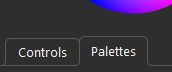
Select the “Palettes” tab.
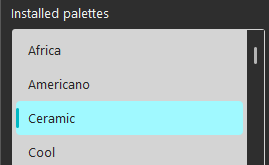
We include a few default palettes. Select one of the installed palettes to get started.
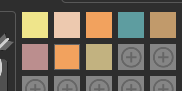
Click to select a color tile. The folder preview will update accordingly. You’re ready to apply this color to a folder.
Or, to use this color as the foundation for another color, click and hold the color tile to open the Advanced Color Mixer (you can also click the “Advanced Color Mixer” button).
Click + on an empty color tile to mix a new color.
To clear a color tile, right click on the color tile.
To select a palette in the list as your default palette, right click on that palette. This works alongside the option “Auto select default palette” under Options. If this option is not turned on, the last set of colors (custom palette) will be used instead.
To save a custom color palette, click “Save color palette”.
To open a previously saved color palette, click “Open color palette”.
To install a previously saved color palette to the list, click “Install color palette”.
To back up your palettes for re-use on another computer running the app, click “Backup installed palettes”.
To restore a backup, click “Restore palettes”.
To permanently remove an installed palette from your computer, click “Uninstall selected palette”.
See also Improved palettes or more.
Leave a Reply