
Click here to review known issues.
1.1.0.24 (coming soon!)
- This is mostly a service update.
- App launch time has been optimized further. Expect a 3-6 second performance gain depending on your computer configuration.
- We updated 3rd party DLLs.
- Selecting a cover image or inset image now correctly updates the last selected path.
- We added tooltips to all major controls.
- We’re bringing in a file size limit of 30mb for cover, inset and overlay images. This is to prevent the app from hanging due to processing large image sizes. The maximum folder icon size supported by this app is 256×256. There is no reason to use too high quality images as the detail will be lost in any case once we scale down your image. For reasonable performance, we recommend using images under 10mb, and for best performance, we recommend images under 5mb. Use your favorite image editor to edit/resize your preferred image.
- To help troubleshoot activation issues, we added a button to test the app’s internet connectivity on the Tools tab:
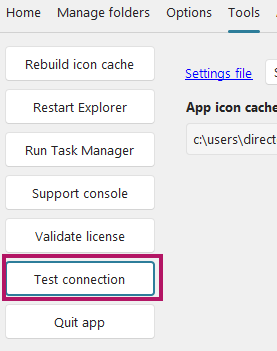
(privacy note: this test simply pings the foldercolorchanger.com website)
- We further optimized the icon quality for the standard icon type.
- In addition, we now include all the major icon sizes (256,128,64,32,16) within .ico file

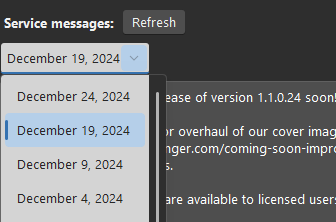
- Service messages are now organized by date
New
- We signficantly reworked the cover images feature. As a result, we changed “Select cover image” to “Customize cover image” on the main app interface. See Improved cover images.
1.1.0.23 (9/12/2024)
New
- We signficantly reworked the palettes feature. See Improved palettes
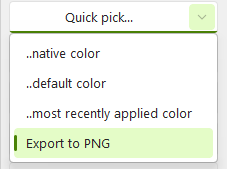
- We added the ability to export the current icon to PNG under Quick Pick.
When exporting your icon design to an Icon Design Archive (IDA file), we now also include both a PNG and ICO file in the archive.
Improved
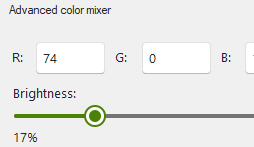
- We signicantly improved the Advanced Color Mixer. It should feel a lot snappier. We added a percentage indicator to the slider for ease of reference.
- We added an option under Options to select the color right away when you pick a color using the eye dropper tool.

Fixed
- We fixed an issue with palettes not saving/opening properly
1.1.0.22 (4/12/2024)
This is mostly a service update to address activation issues that occurs with some users running version 1.1.0.21.
New
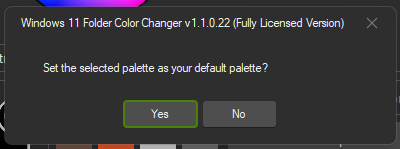
You can now right click the selected palette in the list of palettes to set it as your default palette.
We added a pager to the Options tab.
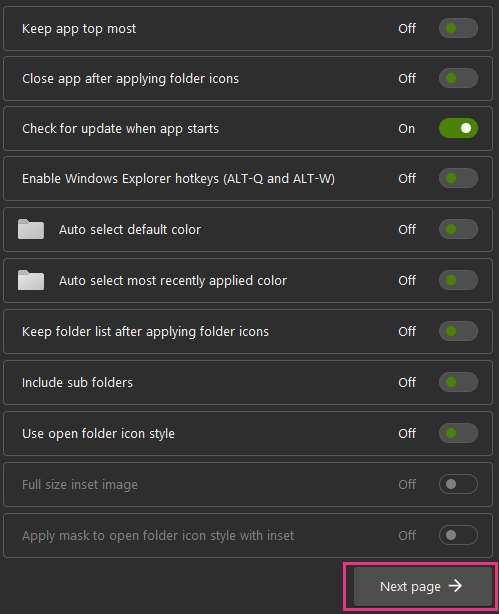
We added an option to automatically select your default palette when the app starts up. If you don’t have a default palette, the app starts up with the last palette used.
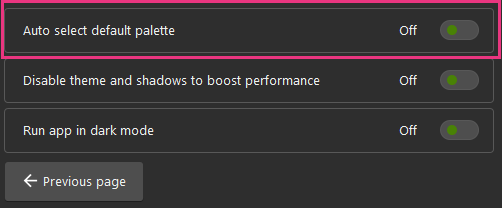
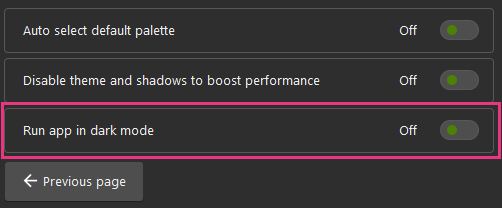
We added an option to run the app in dark mode even if you otherwise run Windows in light mode.
1.1.0.21 (15/11/2024)
New
We added support for network folders (public testing). This requires a specific registry setting. See here.
We added an option to use full size inset images.

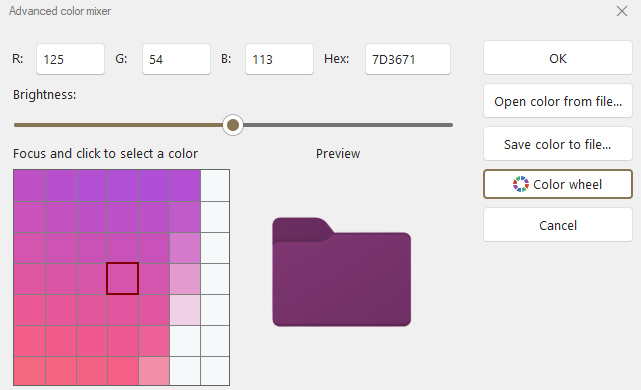
We added an eye dropper tool to the advanced color mixer. Please note: Slower PCs may have a performance impact.
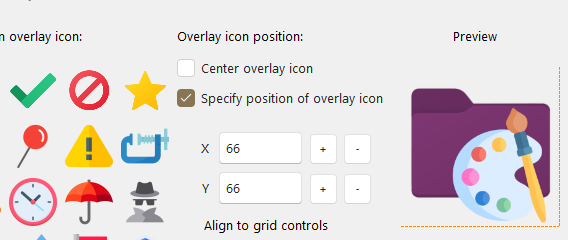
When you resize an overlay icon, crop warning lines now appear when you’re approaching the crop limits.
Starting with version 1.1.0.21, you can now save and open your icon designs (public testing). The “Save/Open color to/from file” buttons next to the preview on the main window has been updated to “Save/open icon design” accordingly.
(The legacy “Save/Open color to/from file” option remains on the Advanced Color Mixer window.)
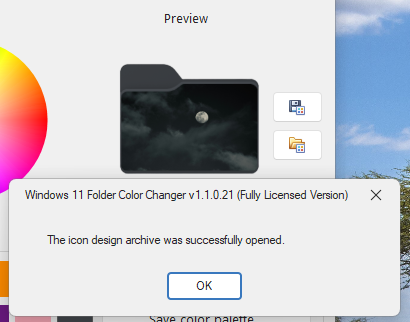
Please note that options like “Use open folder icon style”, “Full size inset image”, etc. will change to match the icon design. This is by design.
This feature is in public testing. Let us know if you encounter any issues.
Changes / Improvements
When running the app, the app will now select the last used color instead of the default color when neither is set to be automatically selected in Options.
We updated the demo window for unlicensed / free users with fresh examples of what Windows 11 Folder Color Changer can do.
We updated the ‘find’ label on Manage folders.
When selecting “Specify position…” on the overlay icon window, we now show an alert to select an overlay image to enable the controls.
When clicking and holding the + or – buttons on the overlay icon window, the icon will automatically move in the specified direction.
We made some improvements when resizing overlay icons. The process will now appear smoother.
We added a long-click to pallette colors. Now, if you hold the mouse for around half a second, the advanced color mixer will automatically open, ready for you to fine tune the selected color. (Note, the original double-click in the centre of the color stays in place).
We improved the readability of the service messages, about, and other text boxes in dark mode.
We fixed a few non-breaking bugs.
1.1.0.20 (30/05/2024)
This is mostly a service update.
We added a double click event to the target pictures. If you double click the target picture, the app will switch to the Manage folders tab.
We fixed the taskbar icon for the app when the “Combine” option is enabled in Windows settings.
We changed the base color to yellow when selecting a cover image after selecting the native color under Quick pick.
We fixed the issue where the cover icon disappears when an overlay icon is selected and subsequently cancelled.
The “How to use this app” link now disappears when you select an overlay icon. This is to ensure that positioning or resizing the overlay icon doesn’t overlap the link. We’re working on an option to hide the link completely once you know the ins and outs of the app.
We fixed the issue where the app doesn’t start on the centre of the screen when the displayed is scaled to 125+.
We fixed the issue where the service message alert appears when the app starts with Windows.
We removed several unused DLLs from earlier versions of the app.
1.1.0.19 (27/05/2024)
New
Starting with version 1.1.0.19, we’re consolidating the main feature controls and palettes on their own tabs on the “Home” tab. (Because of this change, we removed the “Palettes” mini button next to the preview icon).
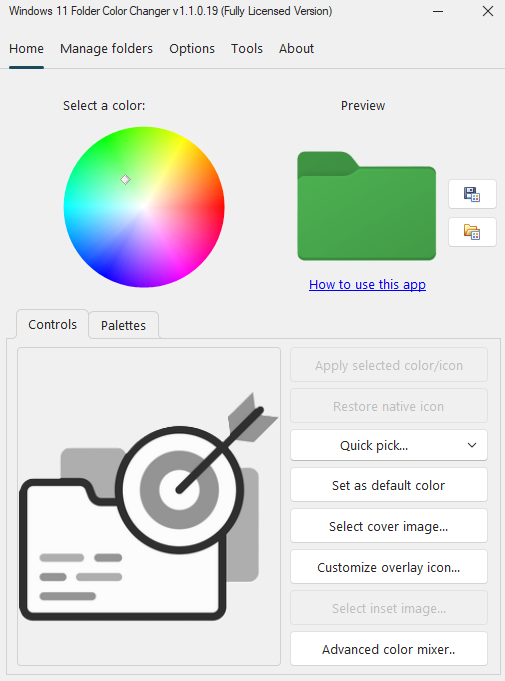
We added a “mini” target to the palettes tab so you can still drag folders from Windows Explorer without first having to click the Controls tab. To accommodate this change, the color tiles in the palette are now a bit smaller.
You can now click and hold a color tile in the palette to edit the color in the “Advanced color mixer” without having to specifically click the “Advanced color mixer” button.
We also added the “Apply selected color/icon” button to the “Palettes” tab so you don’t have to first click the “Controls” tab to apply your changes.
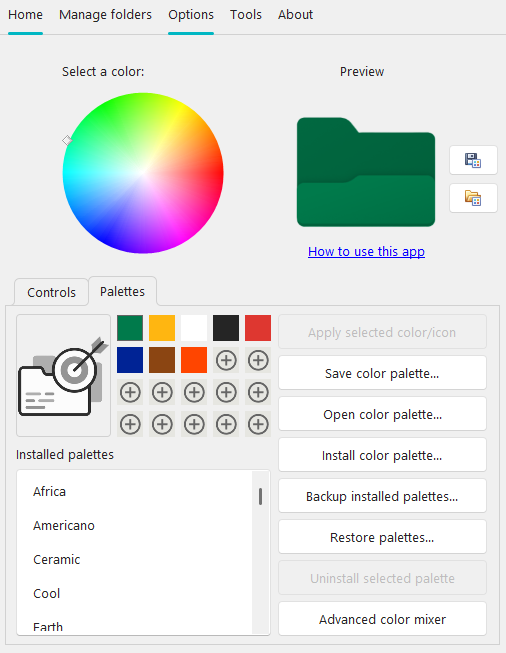
We added the “How to use this app” link below the preview icon for the full version as well.
When mixing a color on the color palette, the (new) color now stays put on its initial color tile. The tiles no longer move on one “space”, adding each (new) color to the start.
When switching/selecting between the installed palettes, the currently selected color no longer automatically changes to the first color in the newly selected palette.
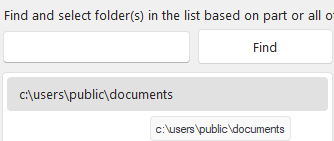
We added tooltips to the folders list on “Manage folders“. This way, you don’t necessarily have to scroll right to view the entire folder name, for example:
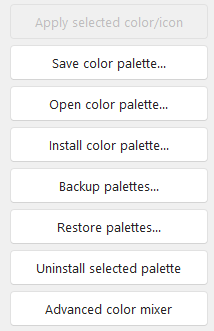
We added options to uninstall the selected palette and backup or restore palettes.
Fixes
- We restored the “Remove folder” button that somehow disappeared from the “Manage folders” tab in one of our earlier updates.
- We fixed an issue where message dialogs don’t always appear in the Windows color mode (dark/light).
- We fixed several issues with the new color palette feature, including:
- Errors saving the current color palette
- White color tiles every time you switch between “Controls” and “Palettes” mode (tabs)
- We fixed an issue where trying to find folders using the “Find string” field on “Manage folders” resulted in restoring (of all things!) the native Windows folder icon for the selected folder(s). It seems to have come about due to an accidental change to the “Find” button that caused the button’s command action to redirect to the “Restore native icon” button.
- We fixed an issue where a folder could be added more than one time to the folder list.
- The app icon now shows up when running the app from the context menu.
App folder checkpoint
We added a checkpoint that will alert the user if the app isn’t running from the expected installation folder. For example, if you upgrade a very old version of the app, the app may run from that folder instead of the Appdata\Roaming folder.
If this happened, the app would exhibit abormal behaviour. This alert now helps alert the user to first uninstall the older version of the app before installing the updated version.
1.1.0.18 (23/05/2024)
New
The next version of Windows 11 Folder Color Changer brings color palettes. Choose from more than twenty pre-set color palettes or create your own!
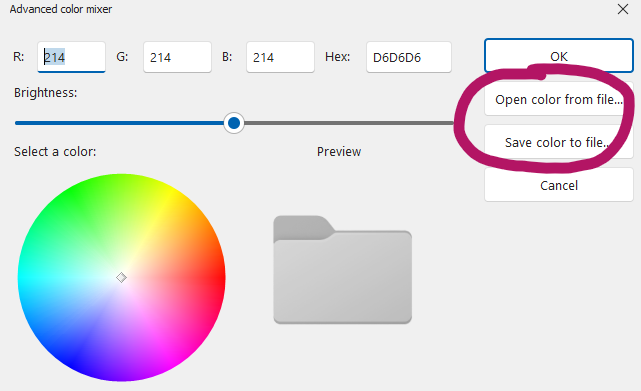
We added Open color from file and Save color to file buttons on the Advanced color mixer window.
Fixes and Changes
We fixed the Clear overlay icon button that seemingly stopped working. We also made some changes to improve the efficiency of the Customize overlay icon window.
We fixed the Save color to file and Open color from file icons that we swopped the wrong way around.
We fixed an arithmetic overflow error on the Advanced color mixer window that caused the icon to completely change color if the brightness slider exceeded certain thresholds.
We also made some changes to improve the efficiency of the brightness slider on the Advanced color mixer window.
Just a reminder that overlay icons and inset images cannot be used at the same time. When using the “open folder” icon, the option to customize an overlay icon will be disabled. When using the “standard folder”icon (i.e. “Use ‘open folder’ icon” is set to ‘off’), the option to select an inset image will be disabled.
1.1.0.17 (22/05/2024)
- If the Include sub folders setting is enabled, Windows 11 Folder Color Changer will now add sub folders for folders added through the Manage Folders tab.
- Windows 11 Folder Color Changer will now warn you if you’re about to add (or update) more than 200 folders. This is because the app typically stops responding while iterating through large numbers of folders.
- We fixed an unhandled exception that was introduced with build 1.1.0.16 when trying to open the Customize overlay icon window.
- To help boost performance, we disabled the automatic light/dark mode detection. If Windows changes from light to dark mode or the other way around, you now need to restart the app for the change to take effect.
- We added back the horizontal scroll bar to the folder list on the Manage Folders tab that somehow managed to disappear in one of the updates to the app.

- The brave and daring can enable an experimental feature by editing the Settings.ini file as follows:
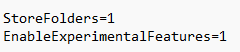
This will enable the following feature on the Tools tab:
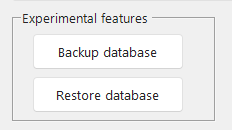
So, what’s this about? Picture the scenario where you have two computers with the same folder structure, perhaps with only the Windows user profile that’s different (typically OneDrive or Dropbox). For example, on your main computer you have c:\users\john\dropbox\work folder, and on your laptop you have the same folder in the same location, e.g. c:\users\laptop\dropbox\work (note, only the Windows user profile is different). This feature will let you backup your folder database and icons on your main computer, and restore it on your laptop. Windows 11 Folder Color Changer will prompt you to confirm changing, for example, john to laptop. Note: If the folder does not exist on the second computer, the folder is simply skipped. This includes where the folder exists, but exists in a completely different location. In other words, the folders have to be in the same location. This works for Dropbox and OneDrive, as well as any other folder, for example, if you have c:\my stuff on both computers, this will work just fine.
Note, the folder database is only created after enabling this feature. Folders that have already been customized will not be included (you’ll need to re-do their customizations to get them into the database). Also note, the folder list stays behind once you disable the feature. This is to retain the folders that have been previously added, and simply add new folders back to the database once you re-enable the feature.
Note: This feature is still experimental. By enabling the feature, you acknowledge as much. We’re not yet encrypting the folder database, we’re not yet prompting you for a backup name, we’re not yet asking you where you’d like to save the backup, etc. All coming in due time. For now, we’re testing mostly for common errors and fixing them. This feature is not yet supported, but you’re welcome to report any bugs. Please note: Once we go live with this feature, your folder database will be cleared.
1.1.0.16 (17/05/2024)
New
We’re enabling the ability to save and load individual colors as we’re moving forward with custom color sets.
Changed
The folder browser and open folder list / save folder list dialogs now use the native dark mode in Windows 11.
The app now utilises the native message box in Windows to improve performance.
Please note: These interfaces in particular implement native Windows APIs, so there are some slight visual design differences. We also fixed an issue where, when opening a saved folder list, the folders are duplicated.
It is now possible to disable dark theme and shadows to boost performance. The app can perform up to 25% faster on slower computers (warning: the app will run in light mode!)
1.1.0.15 (13/05/2024)
New
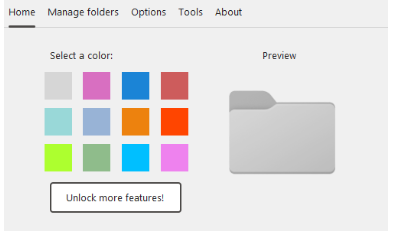
- Added six new beautiful colors to the freeware version
1.1.0.14 (10/05/2024)
New
- Starting with version 1.1.0.14, Windows 11 Folder Color Changer runs on Windows 10. However, Windows 10 users should note that for the time being, the icon style will be the same as on Windows 11 (so for consistency, change all the icons in any given sub folder!). We will add the Windows 10 icon style once we receive the artwork from our designers.
Changed
- Due to pirates misbehaving, we now require that you also provide the original e-mail address used when first licencing Windows 11 Folder Color Changer to re-use your product key.
- Many of our users were still not aware of the beautiful cover image feature, being packed away under Quick Pick. We therefore moved the cover image feature from Quick Pick to a button on the Home tab.
- We added Service messages to the Tools tab.
1.1.0.13 (27/01/2024)
New
- Starting with version 1.1.0.13, you can now use the “open folder” icon which Windows typically uses when displaying folder content, for example:

To use the “open folder” icon, on the “Options” tab, enable “Use ‘open folder’ icon.

- Fully licensed users can also select an inset icon to indicate the folder content, for example:
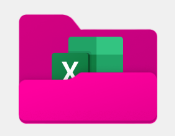
To select an inset image, on the “Home” tab, click “Select inset image…”
You can use any BMP, ICO, JPG, PNG, or TIFF image, as long as it’s at least 115x115px in size.
Please note: Overlay icons and inset images cannot be used at the same time. When using the “open folder” icon, the option to customize an overlay icon will be disabled. When using the “standard folder”icon (i.e. “Use ‘open folder’ icon” is set to ‘off’), the option to select an inset image will be disabled.
- Fully licensed users can also mask the folder icon like Windows does, for example:
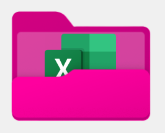
To mask the folder icon, on the “Options” tab, also enable “Apply mask to ‘open folder’ icon with inset”.

- Starting with version 1.1.0.13, you can now select BMP, ICO, JPG, and TIFF images as your overlay icon in addition to PNG. We subsequently updated the button label from “Select PNG” to “Select image”.
NOTES ON USING THE “OPEN FOLDER” ICON
As already stated, you cannot combine the open folder icon with overlay icons. This is because overlay icons go on top, whilst the purpose of the open folder icon is to facilitate an inset icon to indicate the folder’s content.
If you select a cover image when using an open folder icon, the folder will revert to the standard folder. This is to prevent your cover image from being “squashed” into the lower part of the open folder icon. To revert to the open folder icon, select Quick pick… use native color or re-select an inset image.
Changed
- We made minor adjustments to the layout of the Home tab.
- Renamed “Close app after applying folder icon(s)” to “Close app after applying folder icons“
- Renamed “Keep folder list when app stays open after applying folder icons” to “Keep folder list after applying folder icons“
Fixed
- We fixed a few more issues that persisted with the mini preview icons. If you discover any further issues, please let our team know how to replicate the issue.
- We fixed the issue where the app loaded in full view on Windows startup when hotkeys are enabled.
- We fixed a very peculiar issue where clicking “Run Task Manager” on the “Options” tab opened the “old” Task Manager even on newer Windows 11 builds such as 23H2.
- We fixed a few more minor scaling issues.
- We fixed an issue in the licensing engine where activation failed where a user has multiple hard drives/partitions.
- We noticed that the pink folder in the free version doesn’t match the pink tile. This is mostly due to how the pink gradient is applied to the icon. We manually updated the pink tile’s color to bring the two colors closer together.
1.1.0.12 (29/12/2023)
New
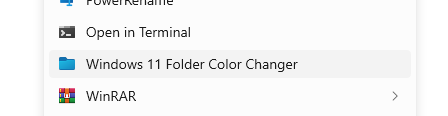
- User request fulfilled: Starting with version 1.1.0.12, you can now launch Windows 11 Folder Color Changer from the Windows Explorer context menu for folders (i.e. select and right click on one or more folders). This will launch and arm the app with the selected folders. See known issues below.
- The Windows 11 Folder Color Changer installer and executable (exe file) are now digitally signed.
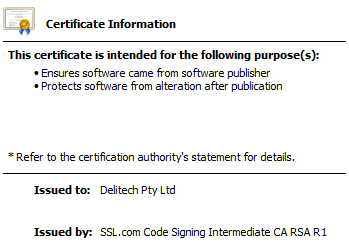
*** THANK YOU TO THE GENEROUS DONOR WHO MADE THIS POSSIBLE BY SPONSORING A CODE CERTIFICATE FOR ONE YEAR. ***
Changed
- Because the new Windows Explorer context menu entry runs the app with system privileges as opposed to the user’s privileges, we’ve had to migrate the app’s settings from the Windows registry to the user’s appdata\roaming folder to avoid a conflict between the settings when running the app “normally” vs the new context menu entry.
- To ensure the new Windows Explorer context menu appears for all users, the app must now be installed separately for every user profile on the computer.
- We added a “Find string” label to the find box on “Manage folders”.
- We changed the default font size from 11pt to 10pt at 100% scaling to align with the font size used in the Windows 11 “Settings” app at 100% scaling.
- We now enforce licensing across user profiles on the same computer.
Fixed
- We fixed the scaling issues for 150% and up.
- We fixed an issue where the color mixer background sometimes stays white when live-switching to dark mode
1.1.0.11 (18/12/2023)
New
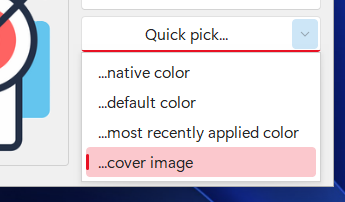
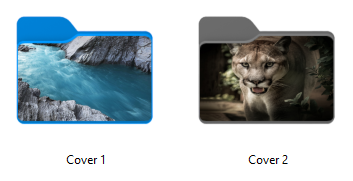
- Starting with the fully licensed version 1.1.0.11, you can now create beautiful folder covers. To use this feature, select “…cover image” under “Quick pick…” on the main window.
You can now give your picture folders in particular a gorgeous new appearance!
- Starting with version 1.1.0.11, you can unlock up to 5 installs of Windows 11 Folder Color Changer with the same license at the same time (if you’re currently a licensed user, you’ll need to manually license at least one (new) install in order to enable this fantastic new offering).
Changed & Improved
- As described above, we reworked the licencing engine. We now use “Product keys” in place of “Unlock codes”.
- Because the extra features such as overlay icons and cover images are also tied to the licencing, we changed “Unlock more colors!” to “Unlock more features!”.
- In similar fashion, we updated the “Unlock more colors” window title to “Unlock more features”.
- We removed the software ID from the “Unlock more features” window and updated the window to now prompt you for your “Product key” in place of your “Unlock code”.
- In similar fashion, we changed the “Request unlock code” button to “Request product key”.
- Due to the addition of cover images, we changed “Apply selected color” to “Apply selected color/icon”.
Fixed
- We fixed some glitches with the mini preview icons for the default and most recent colors on “Options”.
- We fixed an issue where when opening the “Advanced color mixer” window with the native color selected, mixing a color and then clicking Cancel sometimes resulted in a black folder icon.
1.1.0.10 (8/12/2023)
New
- Starting with the fully licensed version 1.1.0.10, you can now use the advanced color mixer.
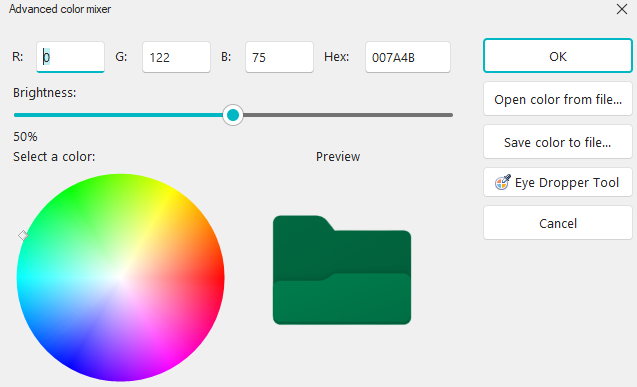
- Added “Version history” to “About”
- Starting with version 1.1.0.10, you can now download updates from within the app if there is an update available after clicking “Check for updates”
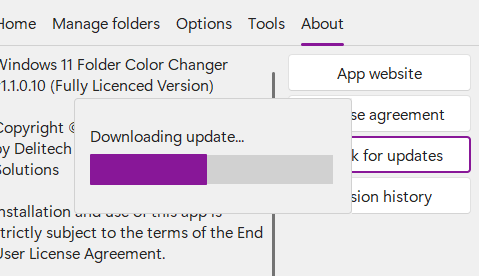
Changed & Improved
- Starting with version 1.1.0.10, we’ve consolidated the features on a Windows 11 style menu. Yes, if you’ve been using our app since its first release, this will take some getting used to. 🙂

- Starting with version 1.1.0.10, we’ve begun a migration to a more natural Windows 11 look and feel. This includes using your Windows 11 accent color. For example:
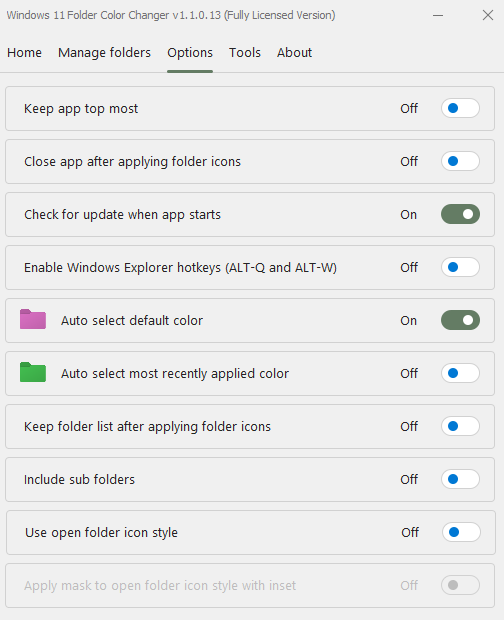
- You can now drop folders on the folder list under “Manage folders”
- We moved the performance warning when enabling “Include sub folders” to appear during selection.
- We changed “Auto select default folder color” to “Auto select default color”
- We changed “Keep folder list if app stays open after applying folder icons” to “Keep folder list if app stays open after applying color”
- We added the “Oops! Something is preventing the app from running normally” message.
- We changed “Configure overlay icon” to “Customize overlay icon”
- We changed “Restore native color” to “Restore native icon” to differentiate for example between using the native color (with an overlay icon) as opposed to reverting to the original folder icon.
- We swopped ALT-W and ALT-Q in “Enable Wndows Explorer hotkeys”
- We added a Cancel button on the “Configure overlay icon” window (there’s also a Cancel button on the “Advanced Color Mixer” window)
- If you use the ALT-W hotkey and you have one or more desktop folders selected (that you forgot about), the app will now alert you.
- Starting with version 1.1.0.10, you can now select between “quick picking” the native color, your default color, or the most recently applied color.
Fixed
- We fixed an issue where users get a “You messed with the registry” error when opening the “Configure overlay icon” window. We’ve also changed this particular message to a more user friendly message whenever this actual error (the real error) occurs. 🙂
- We fixed some more minor issues with the positioning and resizing controls on the “Configure overlay icon” window.
- We made several improvements when switching between light and dark mode while the app is running. There are still some quirks that relate mostly to Windows 11 rendering.
- We fixed the scaling issue that occured when live-scaling the app to 150+ and back.
- We fixed an issue where the top most setting doesn’t apply when you first run the app.
- We fixed an issue where if you repeatedly press the hotkeys the app eventually crashes.
- We fixed an issue where the auto-select default/most recently icons under Options don’t always update.
1.1.0.9 (4/12/2023)
This update is a medium impact service release.
New
- Added options to rebuild icon cache, restart explorer and run task manager to the “Options & tools” window.
Changed & Improved
- We improved the rendering quality of the folder icon.
- Renamed “Options” window to “Options & tools”.
- Moved “Quit app” button to “Options & tools”.
Fixed
- Dragging a folder from the navigation pane in Windows Explorer stopped working in version 1.1.0.8. We fixed the issue in this update.
- Hotkeys are now working on the Desktop. You can now send selected folders to the app if hotkeys are enabled.
- Most of the quirks pertaining to positioning and sizing of the overlay icons haven now been fixed. We will continue to respond to any further reports.
- When selecting a color, then configuring an overlay icon, and then reverting to the native Windows folder icon (keeping the overlay icon in place) and applying this to a folder, the overlay icon was not applied. We fixed the issue in this update.
- We fixed an issue where “Include subfolders” was checked under “Options & tools” but didn’t take effect until you uncheck and recheck the box.
1.1.0.8 (4/12/2023)
New
- Starting with the fully licensed version 1.1.0.8, we now support overlay icons, complete with positioning and resizing controls. You can also select your own image.
- Added the ability to quickly pick the native Windows folder color as opposed to trying to select it in the color picker.
- Starting with version 1.1.0.8, we’ve updated the icon cache to re-use icons from the icon cache where possible.
Changed & Improved
- Sub folders are now applied regardless of whether you drag, click the target or use the hotkey.
- Improved alerts if a folder cannot be added due to Windows permissions.
- Changed “Restore Windows default” to “Restore native color”
- Improved caching.
- Removed some legacy code (yes, we’re tidying up after one year already!)
- Folder icons in places such as Documents and Desktop should now apply successfully. Nb: Using the hotkey still doesn’t seem to work for such folders. Our team is working on this!
1.1.0.7 (23/11/2023)
New
- User request fulfilled: Starting with version 1.1.0.7, the app is now storing all its associated folder icons in a global icon cache within the User folder as opposed to their respective folders. This will avoid “old” and “unused” prior icon files from cluttering the folders, particularly if the user has enabled viewing hidden files. This lays the foundation for backing up the global icon cache in future.
- Starting with version 1.1.0.7, the app will clean up “old” and “unused” prior / orphaned icons in a folder as soon as that folder is first updated again from within the app. We will remove this “garbage collection” in a later version.
- Added an option to include sub folders. At this time, the top level folder must still be dragged onto the target to include sub folders for this to work. Using the ALT-W hotkey or clicking the target will add only the top level folder itself. If enabled, the app will recursively change the icon of every sub folder within every selected folder. No need to manually change the individual sub folder icons.
Warning: This may significantly impact performance depending on the total number of folders. We recommend keeping this option disabled and only enable it as and when you specifically need it. Exercise care. - Added a total folder count to the Manage Folders window.
- Added the ability to Select/Unselect all on the Manage Folders window.
- Added the ability to Clear folder list on the Manage Folders Window.
1.1.0.6 (22/11/2023)
This update is a high impact service release.
- Fixed issue where Options don’t get saved and/or don’t take effect.
- Fixed issue where app doesn’t check for updates even if “Check for update when app starts” is enabled
- Fixed issue where default color replaces most recent color
- Fixed issue where app doesn’t always automatically capture folders when using ALT-Q / ALT-W hotkeys in Windows Explorer
- Fixed issue where “Remove folder(s) from list” in Manage folders only removed one folder
- Changed “Apply folder icon” to “Apply selected color”
- Changed “Restore defaults” to “Restore Windows default” to resolve ambiguity with “Set default color”
- Changed “Set default” to “Set default color”
- Added the ability to click the target to automatically capture any folders selected in Windows Explorer
- Added “Clear folder list” to Manage folders
1.1.0.5 (21/11/2023)
This update is a medium impact service release.
- Consolidated “Auto select” and “Auto apply” icons. How the app behaves will depend on whether you only run the app/use the ALT-Q hotkey, or use the ALT-W hotkey. If you only run the app/use ALT-Q, the color will be automatically selected. If you use the ALT-W hotkey, the color will be automatically selected and applied to the selected folders.
- Added indicator icons next to the “Auto select” options to help distinguish between them.
- Made performance improvements when applying a color to many folders.
- Added option to keep the current folder list if the app stays open after applying colors. This is useful if you’ve changed the folders and don’t like their appearance just yet, so you don’t have to redo everything. (Of course you can still save your folder list for later re-use also).
- Fixed issue where the app will crash if you use ALT-W combined with the “Close app after applying folder icons” setting but you haven’t opted to use either of the default colors. The app will now use the default gray folder icon if this happens.
1.1.0.4 (21/11/2023)
New, Changes & Improvements
- Updated the color pickers for the freeware and fully licensed versions. The fully licensed version now includes unlimited colors!
- Added dark mode support.
- Updated the main window by including a preview icon.
- Added the “About this app” window. Added “Quit app” to this window to completely exit the app and shut down Windows Explorer hotkeys.
- Added two more options: Select the most recent folder icon on run & Apply the most recent folder icon on run.
Disabled & Deprecated
- Deprecated the welcome prompt
- Disabled “Custom icon” while we’re working on icon overlays.
1.1.0.3 (7/11/2023)
New
- Added ALT-Q hotkey. This will open Windows 11 Folder Color Changer when hotkeys are enabled without applying the default color.
- Added the ability to select a default color. Select one of the icons and click “Set default color”.
- Added the ability to automatically apply the default color. If the option “Auto select default folder color” is enabled, Windows 11 Folder Color Changer will apply your default color to the selected folders in Windows Explorer automatically when using the ALT-W hotkey.
1.1.0.2 (6/11/2023)
New
- Added ALT-W system wide hotkey. Under Options, check “Enable Windows Explorer hotkeys” to enable this feature. You can now select folders in Windows Explorer and use the hotkey to instantly send the selected folders to the app. Then, simply select a color and click “Apply selected color”. This feature is significantly faster than having to right click folders and sending them to the app. We’ll add the ability to select your default color in the next update.
- Added “Add folder” to the “Manage folders” window.
1.1.0.1 (10/4/2023)
We’ve moved forward to the next major version, i.e. Windows 11 Folder Color Changer 1.1. 🙂
New
- First update to the installer. We’ve moved away from ClickOnce to make things a bit easier.
- Added options: (1) Keep app top most (2) Close app after applying folder icon (3) Check for update when app starts (we recommend you enable the update check so you know when we’ve published an update).
Fixed
- Fixed issue where main window & “Manage folders” window folder lists get out of sync
Workaround for user folders pinned to Quick Access/Home
As noted under 1.0.0.15, Quick Access/Home does not always reflect changes to pinned folder icons. When you browse to the applicable top level folder, the icon for the folder seems to have been properly updated.
Starting with version 1.1 of Windows 11 Folder Color Changer, the app will automatically unpin and repin these folders and force a refresh. Unfortunately, as a side effect, this will change the pinned folder order. Our team is working to find a better solution.
This workaround does not address a similar issue with standard Windows 11 folders (e.g. Documents, Downloads etc.) seemingly pinned to Quick Access/Home and elsewhere in the navigation pane.
1.0.0.18 (22/8/2022)
This update is a low impact service release.
Changed & Improved
- Moved custom icon selector to top row
1.0.0.16/17 (22/8/2022)
New
- Added custom icon selector (this is the same as the built-in Windows feature, just in a more convenient place)
- Behind the scenes: We’re working on the engine to enable our own set of overlay icons. It may take a while, but it’s coming!
1.0.0.15 (20/8/2022)
New
- Added the first iteration of the folder manager
Changed & Improved
- Updated the main app to reduce wasted space by moving the privacy policy to the unlock (license) window
- Updated the unlock (license) window so that everything is a bit more clear
Fixed
- Fixed issue where folder icon is not hidden by default
Leave a Reply